Apply for beta testing

TimeBoost Help & Tutorials

Learn TimeBoost at your own pace.

Follow the guided setup, then learn each step of a job with short, practical videos. From your first settings to reviewing job costs, see what to do next.

  • 8 short videos
  • Captions in every video
  • Written transcripts
A tradie checks TimeBoost Home on his phone at the kitchen table over a cup of coffee, with his two children smiling beside him. The screen shows 25 reminders needing attention, 4 jobs scheduled today, his next job and $1,052 owed.
Checking the day ahead at home. The screen shows fictional data.

Lessons 1 to 3

Getting started.

Lessons use a fictional example business and figures. Use your own costs, prices and settings.

1Lesson 1 Length 2:36

Business setup

Check your business profile, contact and bank details, costs, margins, GST and quote rounding before you prepare your first quote.

Captions are shown in the video.

Read the transcript

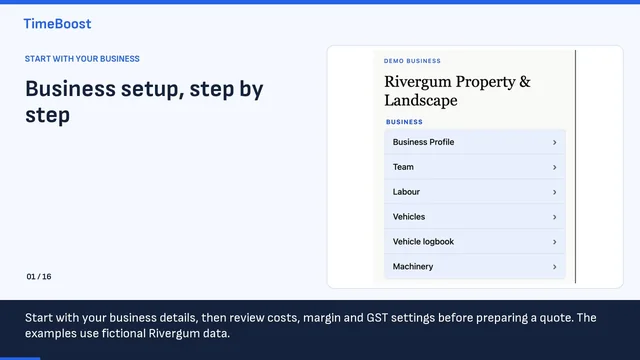
Start with your business details, then review costs, margin and GST settings before preparing a quote. The examples use fictional Rivergum data.

In Business Setup, look for Business Profile. Begin with the details that identify your business on customer documents.

Enter your business name, website and ABN. The Rivergum details shown here are fictional examples, not information to copy.

The profile includes Photos and Files controls for an optional logo. Use your own business branding when completing this section.

Review your phone number and email, then enter the full street address for your business base. Check spelling and contact details carefully.

The bank section includes account name, BSB and account number. Check your own details against your bank before sharing an invoice.

Review the switch for showing bank details on new invoices. The screen notes that existing invoices keep their original details.

TimeBoost does not confirm receipt of bank transfers. Check your bank before manually recording a payment. Keep your payment records accurate.

Business Setup lists Labour, Vehicles and Machinery. Review the costs relevant to your business before relying on a quote.

The work and pricing section includes Products & Services, Job Types / Services and Pricing & Margins. Use your own costs, not unreviewed sample values.

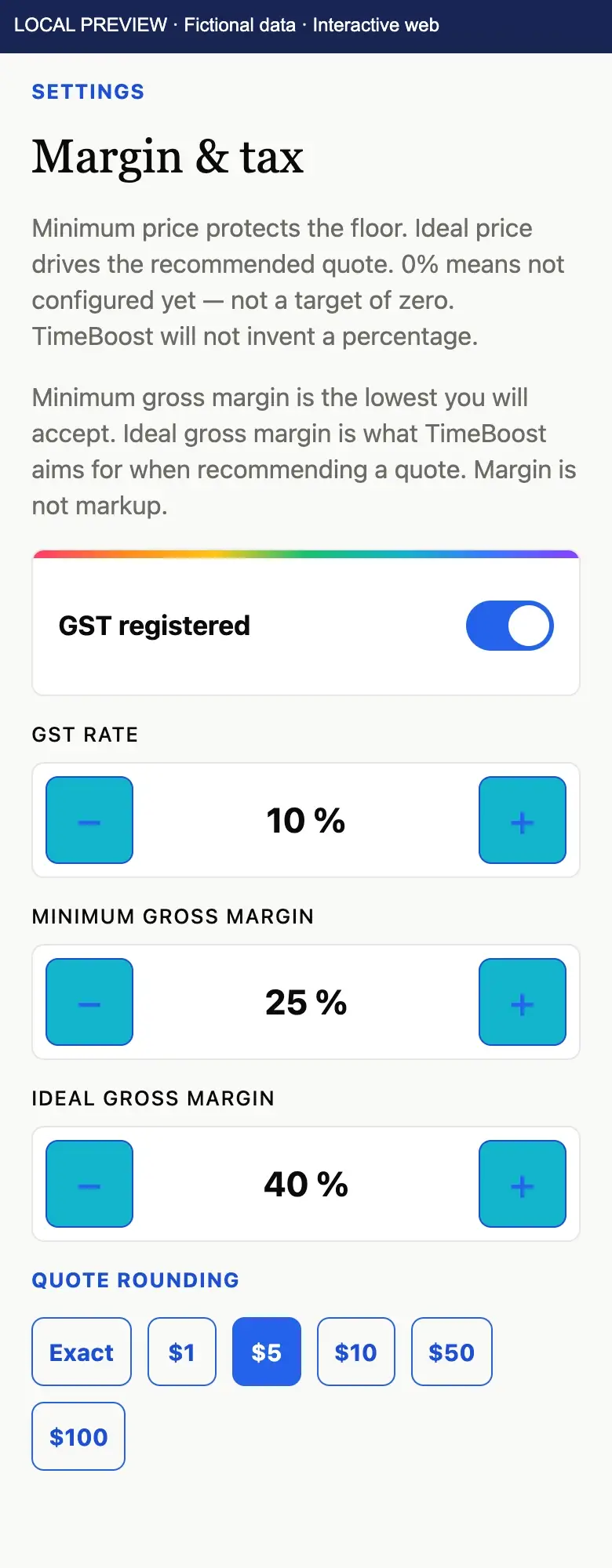
On Margin & tax, review GST registered and GST rate for your own circumstances. The displayed setting is an example, not tax advice.

The screen describes minimum gross margin as the lowest you will accept. The sample 25% is not a recommended target for your business.

Ideal gross margin is the target used when recommending a quote. Review your own target; the sample 40% is not automatically correct.

Review the explanation on this screen: margin is not markup. Zero per cent means not configured yet, rather than a target of zero.

Review the quote rounding options alongside your costs, margin and GST settings. This preview shows a $5 selection; choose what suits your business.

Check business details, bank details, costs, margins and GST. Review your settings carefully before preparing your first customer quote.
2Lesson 2 Length 2:54

Reviewing your quote

Compare what the customer pays with what the job is expected to cost, then check the recommended price, GST and estimated margin before you share the quote. This lesson reviews a quote that’s already been prepared, rather than building one from scratch.

Captions are shown in the video.

Read the transcript

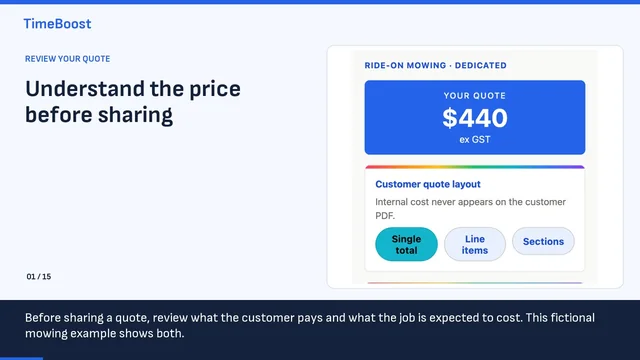
Before sharing a quote, review what the customer pays and what the job is expected to cost. This fictional mowing example shows both.

Customer prices are the rates charged to the customer. Here, the mower operator is priced at $95 per hour, excluding GST.

The customer labour line shows 3.3 hours at $95 per hour: $313.50 excluding GST. Check the time and rate against the job scope.

Open How this quote was calculated to review the internal estimate. The cost breakdown is different from the customer prices above.

Internal labour uses $38 per hour in this example. The labour section totals $112.75 across driving, additional work and a travel allowance.

Vehicle and travel costs total $53.07. Review the 38 kilometres and operating hours shown here, using the costs that apply to your own vehicle.

Other job costs include $12.65 for the mower operator’s setup time. Check each cost category so the estimate reflects the work you actually expect.

Labour, vehicle and travel, and setup costs total $178.47 here. This is the estimated cost to the business, not the amount charged to the customer.

The pricing card shows minimum, ideal and recommended prices. This example recommends $440 excluding GST. Treat the recommendation as a figure to review.

The customer charge-out figure is $387.15, while the final quoted amount is $440. Read the final quote and customer total before sharing.

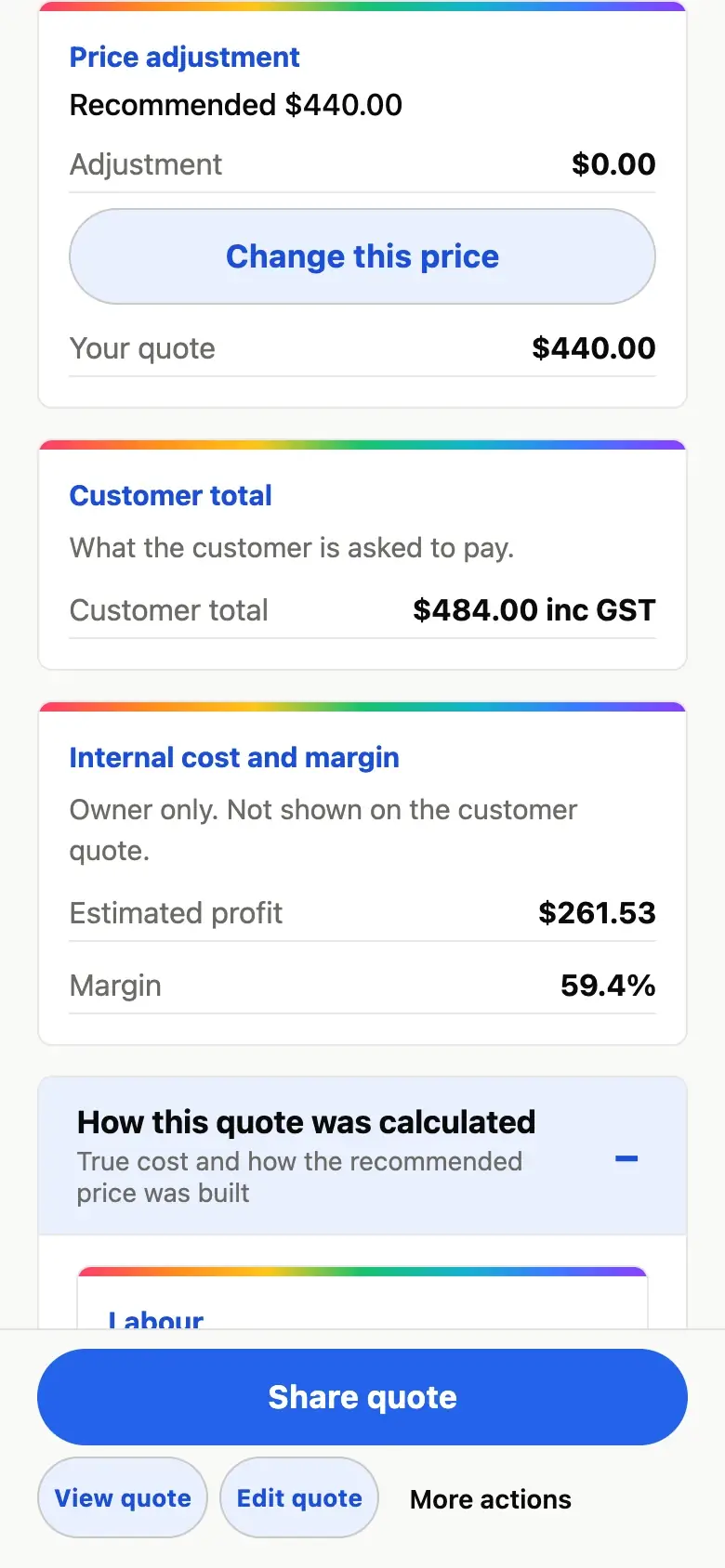
With the displayed 10% GST setting, GST adds $44 to the $440 quote. The customer total is $484. Review your own GST settings.

The $440 quote less $178.47 estimated cost leaves $261.53 estimated profit. That is 59.4% gross margin on the price excluding GST.

These figures depend on the estimated work and costs. Recheck them when the scope changes; the displayed margin is not a guarantee of the final result.

Price adjustment shows the recommendation, adjustment and your quote. Use Change this price if a change is needed, then review the resulting total and margin.

Review the quote details with View quote, or use Edit quote to revisit the job. Check scope, price and GST before choosing Share quote.

3Lesson 3 Length 1:25

Scheduling a job

Check who’s assigned, how long the job will take and the suggested times, then look at the calendar before you choose a slot.

Captions are shown in the video.

Read the transcript

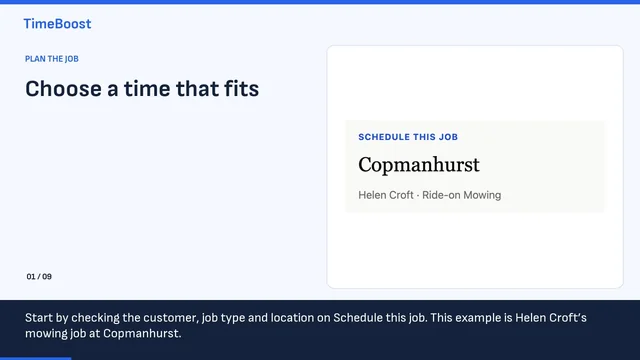
Start by checking the customer, job type and location on Schedule this job. This example is Helen Croft’s mowing job at Copmanhurst.

Review Assigned staff before choosing a time. Make sure the people listed are the people you intend to send to this job.

This job currently allows four hours and forty-six minutes. Check that the duration makes sense for the work, rather than accepting it without review.

Change duration opens the time choices. Choose a suitable duration for the job; use Other when the listed choices do not fit.

Best fit shows a suggested date and time, an estimated travel time, and a Select button. Review those details before choosing the slot.

Other good options gives alternative dates. Compare them with your customer’s availability, travel needs and commitments outside TimeBoost.

View full calendar opens the weekly calendar. Review the dates and existing TimeBoost jobs before deciding where this job belongs.

In this example, the Google Calendar notice says the connection is unavailable. Do not treat an empty calendar area as proof that you have no outside appointments.

Check the staff, duration, date, start time and travel allowance. Choose Select only when the proposed slot suits the job and your customer.

Lessons 4 to 6

Managing the work and money.

These lessons use a demo business with no accounting connection. If you connect Xero or QuickBooks Online, some screens and notices may look different.

4Lesson 4 Length 1:28

Recording actual job costs

Record who worked and what the job really cost, and learn the difference between saving a draft and confirming your actual costs.

Captions are shown in the video.

Read the transcript

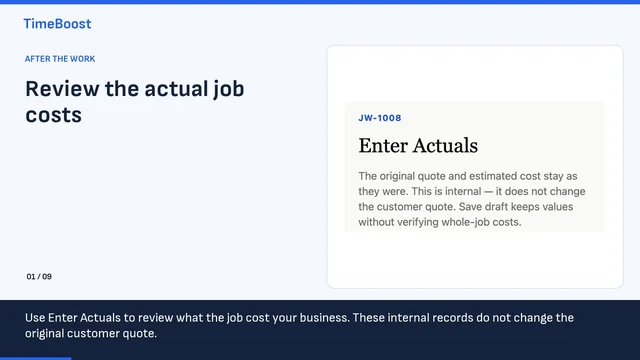
Use Enter Actuals to review what the job cost your business. These internal records do not change the original customer quote.

This job shows Actual costs not verified. The draft cost total matches the estimate, but that does not make it a verified actual cost.

For each labour line, choose who worked and review Actual hours. Use the time actually worked, rather than leaving a prefilled estimate unchecked.

Review the Actual cost field for each line. The quoted time and rate are useful context, but the actual amount needs to reflect the job.

Check the road kilometres and operating-hours cost lines. Review the actual amounts using your job records, including any difference from the estimate.

Add extra cost opens an additional cost line. Describe what the cost was and enter the amount so the record is understandable later.

Use Save draft when you need to retain the entries before completing your review. Saving a draft does not confirm whole-job actual costs.

Once every relevant cost has been reviewed, use Confirm actual costs. The confirmation applies to the values on screen, including any prefilled lines.

The summary shows actual profit as unavailable while costs are unverified. Check that status before treating a figure as the job’s actual result.

5Lesson 5 Length 2:01

Creating and reviewing an invoice

Check the customer amounts, GST, due date and invoice style, create the invoice, then check its number, Draft status and balance. Creating an invoice doesn’t send it to your customer or record a payment.

Captions are shown in the video.

Read the transcript

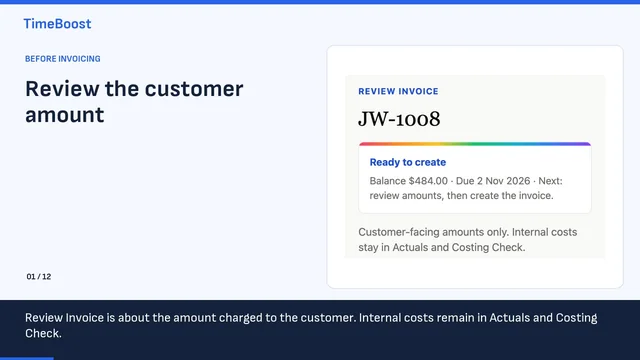
Review Invoice is about the amount charged to the customer. Internal costs remain in Actuals and Costing Check.

Check that you are reviewing the intended job and customer. This example is Helen Croft’s job, with the reference JW-1008.

This screen warns that the job is not completed. Creating an invoice now does not mark the work complete, and actual costs do not become the customer charge.

The accounting notice says TimeBoost will issue this invoice and Xero is not connected. Check the notice for your own business before proceeding.

The displayed customer charge is $440, GST is $44, and the total is $484. Check all three figures against what you intend to invoice.

Review the due date in the invoice summary. Make sure the payment timing matches the terms agreed with your customer before creating the invoice.

Review the Simple or Detailed style and the description shown. Make sure the customer can recognise the work and understand the charge.

After checking the details, select I have reviewed this invoice. The control changes to Reviewed — ready to create.

With the review complete, select Create TimeBoost Invoice. This creates the invoice record and opens its customer invoice page.

The new invoice is INV-1010, linked to Helen Croft and job JW-1008. Check that the customer and job reference match the invoice you intended to create.

The status is Draft, with the full $484 still outstanding. Creating the record has not sent it to the customer or recorded any payment.

Check the total, payment terms and payment details before sharing. This example totals $484, including $44 GST. Review your own details before sending anything.

6Lesson 6 Length 1:31

Recording payments

Record a payment you’ve received against an invoice and check the remaining balance. Recording a payment doesn’t move money or process a card payment.

Captions are shown in the video.

Read the transcript

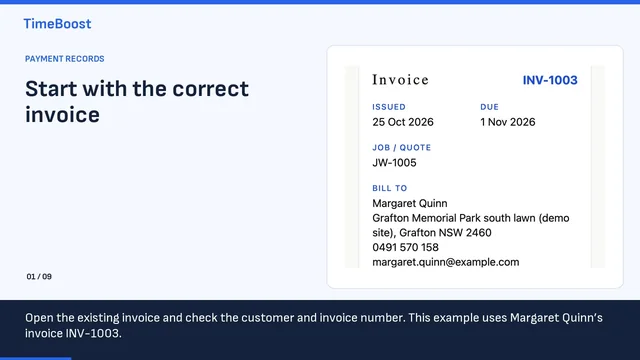
Open the existing invoice and check the customer and invoice number. This example uses Margaret Quinn’s invoice INV-1003.

The example is Part paid. The invoice total is $291.50, with $180 already recorded as paid and a remaining balance of $111.50.

Before recording a bank transfer, check your bank and match the payment to the correct invoice. A payment record is not proof of a new transfer.

In Record payment, enter the amount actually received. The Amount paid field is marked including GST. Do not enter the same receipt twice.

Set the Payment date to the relevant receipt date. Review it carefully rather than relying on the date already displayed in the form.

Method and Reference are optional fields. Add useful details that help you match the record to your bank statement or other receipt evidence.

Check the invoice, amount, date and reference before Save payment. This records an amount against the TimeBoost invoice; it does not move money.

This form is manual payment recording, not live Stripe card processing. The screen also states that Save payment does not sync to Xero.

Review Payments for amounts already recorded. Here, the existing $180 part payment is listed with its date and bank method. Do not add it again.

Lessons 7 and 8

Understanding your business and finding help.

7Lesson 7 Length 1:53

Reports and job profit

Choose a report period, compare estimated and actual job profit, and see what each figure includes. Job profit isn’t a full profit and loss statement.

Captions are shown in the video.

Read the transcript

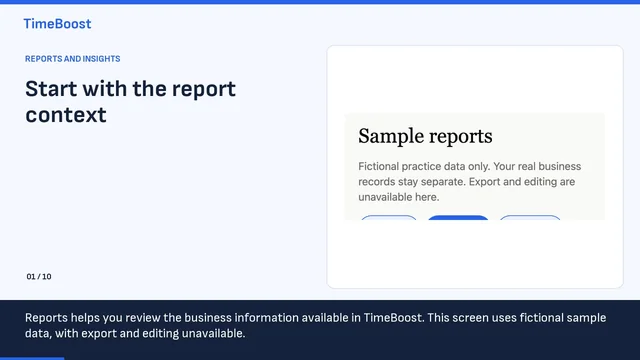
Reports helps you review the business information available in TimeBoost. This screen uses fictional sample data, with export and editing unavailable.

Select the period you want to review. Check the displayed start and end dates before comparing any amounts. This example shows October.

The summary distinguishes quoted, completed, invoiced, paid and outstanding amounts. Quoted, completed and invoiced amounts exclude GST here. Paid is recorded cash, not profit.

Job profitability compares estimated and actual results for completed work. Check the report description and selected period before opening a result.

The Jobs report identifies entries where actual costs have not been entered. An agreed customer price alone does not tell you the actual profit.

Helen’s mulch job separates the original quote, the forecast after variations, and the result after actual costs. The actual margin shown is 31.6 per cent.

The agreed amount with extras is $1,002.50. Actual costs are $685.47, leaving $317.03 actual profit for this job.

Cost comparison shows labour increased by $144 and materials by $42 against the estimate. Review the underlying actuals to understand those differences.

The report list says a complete accounting ledger is unavailable. Job profit is not a business profit and loss statement, and recorded job labour costs are not payroll wages.

Use the dates, job details and actual-cost status together. Review incomplete records before relying on a report to make a business decision.

8Lesson 8 Length 1:14

Help and Ask TimeBoost

Find answers in TimeBoost Help by topic, and see how Ask TimeBoost works, including its voice privacy notice.

Captions are shown in the video.

Read the transcript

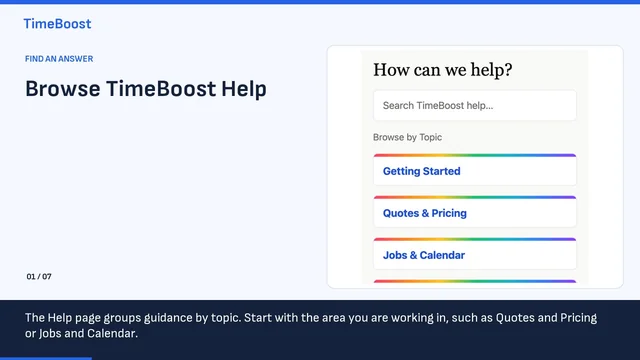
The Help page groups guidance by topic. Start with the area you are working in, such as Quotes and Pricing or Jobs and Calendar.

Use Search TimeBoost help to find relevant guidance. You can also browse topics for invoices, customers, products and services, and other areas shown here.

Quotes and Pricing opens a list of questions and answers. Read the answer that matches your task, then check the current screen and your own business settings.

Ask TimeBoost offers a text box, a Go button and suggested requests. Its notice says pages open directly, while changes to records need confirmation.

The visible suggestions include today’s jobs, Reports, Customers and outstanding invoices. Choose a request that matches what you need to find.

The voice notice says audio may leave your device for the browser’s speech service when you tap Start. Read that notice before choosing to speak. You can type instead.

The notice says Stop keeps recognised text for review, while Cancel discards it. Review any proposed record change before confirming it, and use More in Help for guidance.

What these lessons cover

These lessons cover setting up your business and the main steps of a job. More lessons are planned, including adding and editing customers and products, and setting up your team.

In the meantime, search the Help section in TimeBoost, or email BuzzBrain Support from within the app.

Prefer to read?

Written quick-start.

The same first steps as short written guides. Screens are from a local preview with fictional data.

Chapter 1

Set up TimeBoost

Prefer video? Watch the setup lesson

Have your labour rates, vehicle and equipment costs, and a few common products handy.

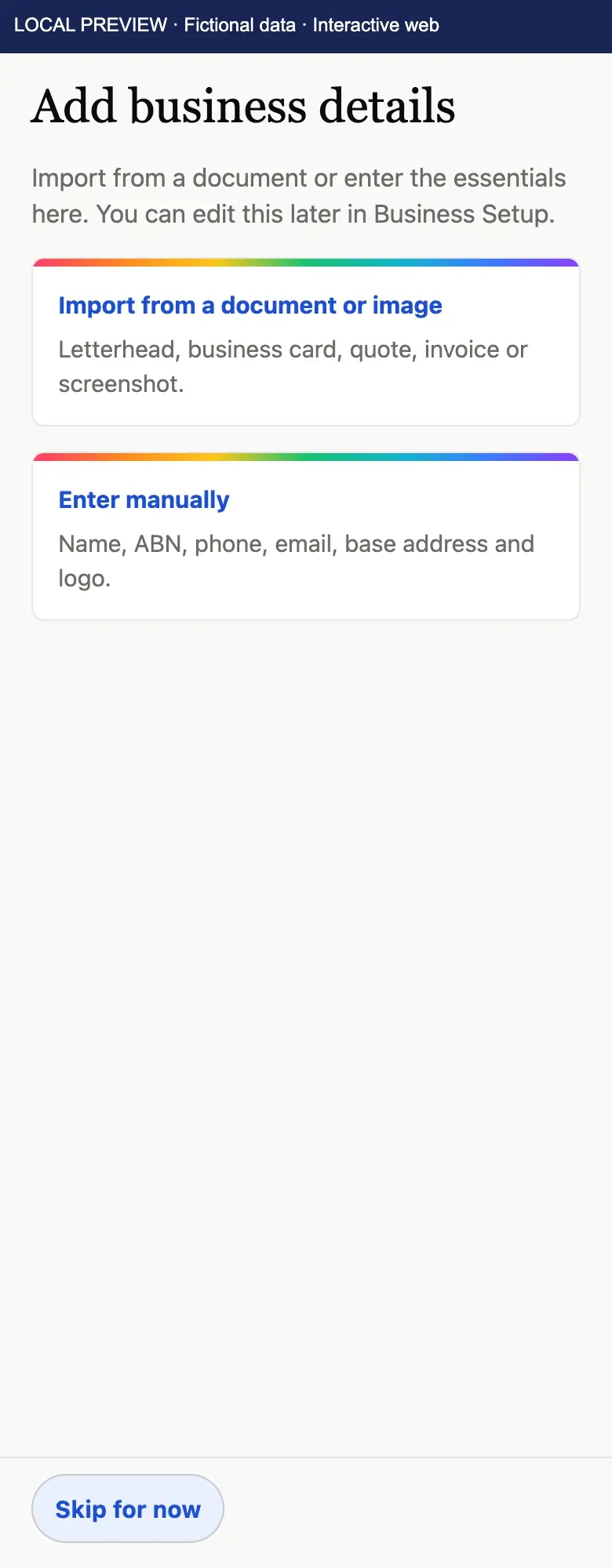
  1. Add your business details. Enter your name, ABN, phone, email, base address and logo, or import them from a document or image. You can change them later in Business Setup.
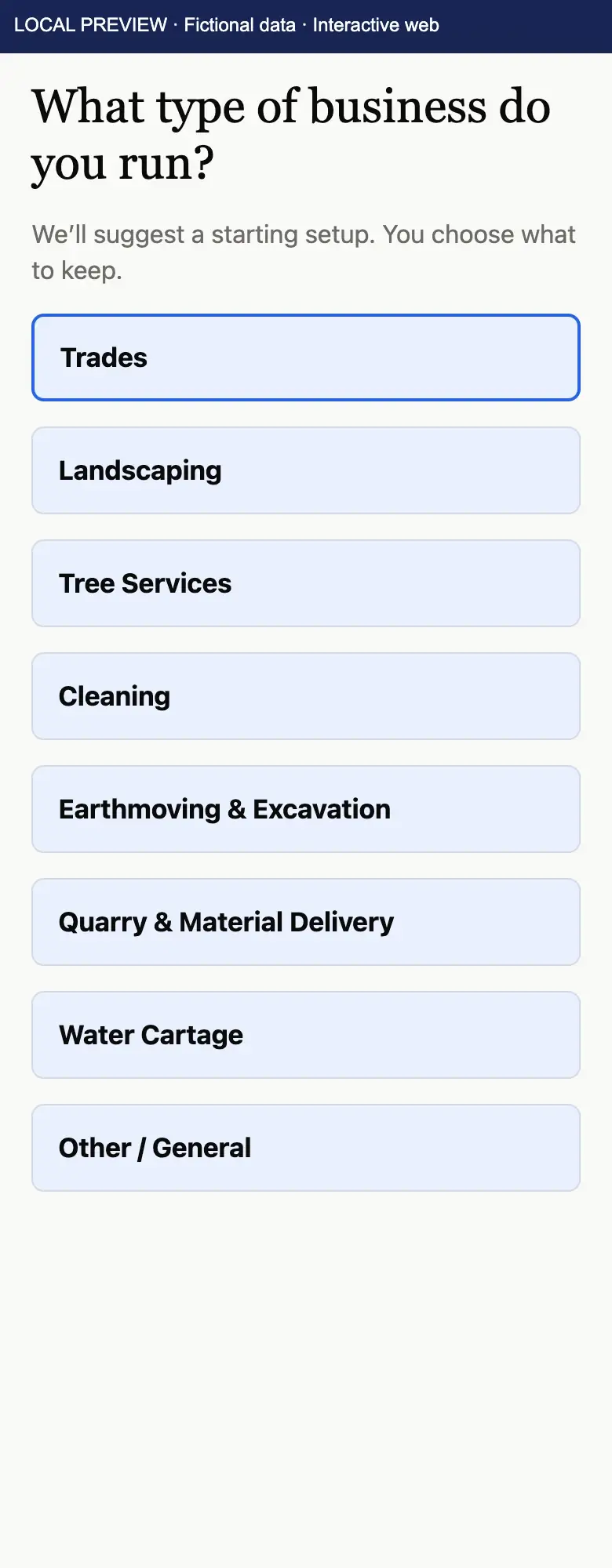
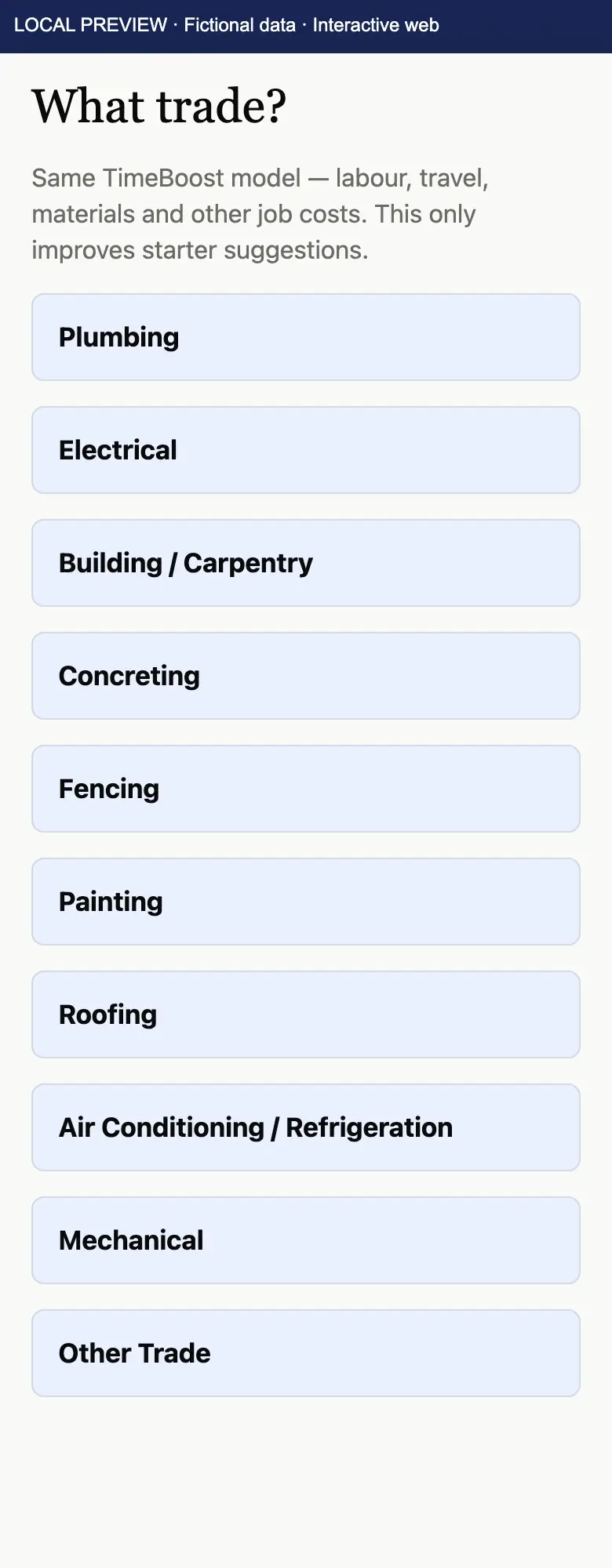
  2. Choose your type of business, then your trade.
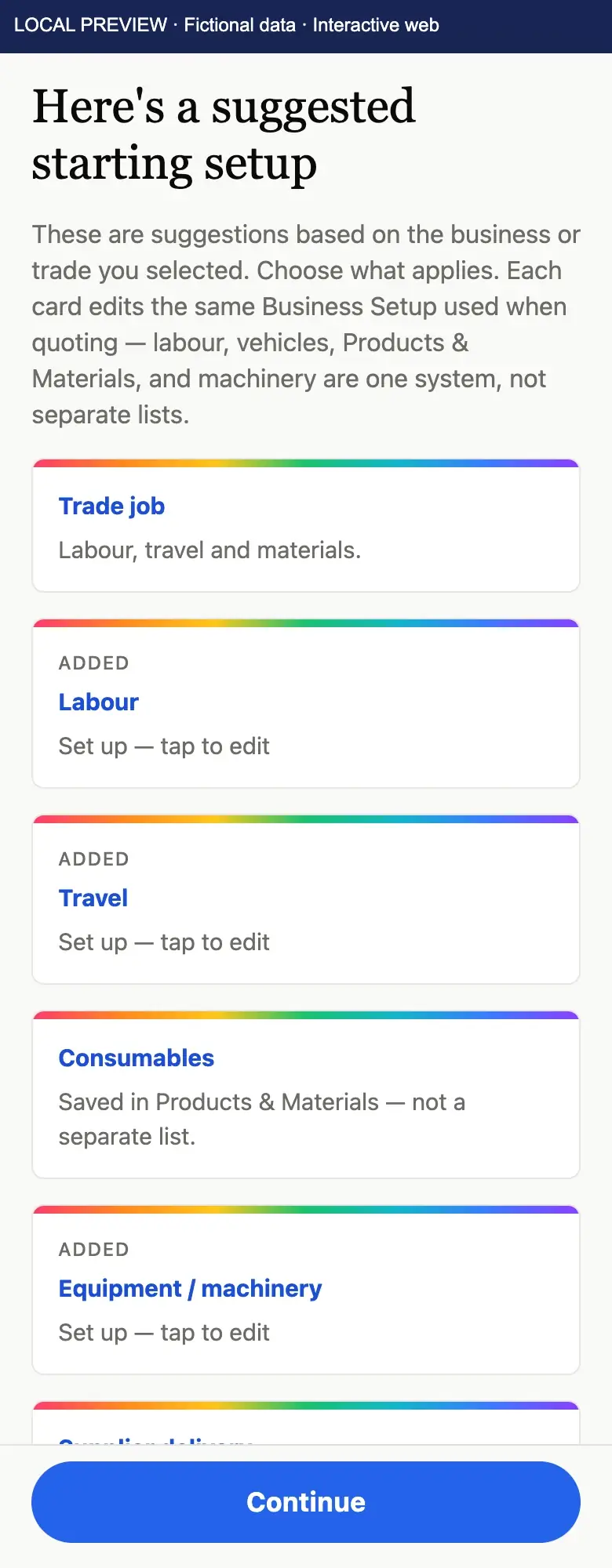
  3. Review the suggested starting setup. Tap labour, travel, consumables or equipment and machinery to set each one up with your real costs.
  4. Set your margin and tax. Turn GST on or off, then set your minimum and ideal gross margin and how quotes are rounded.
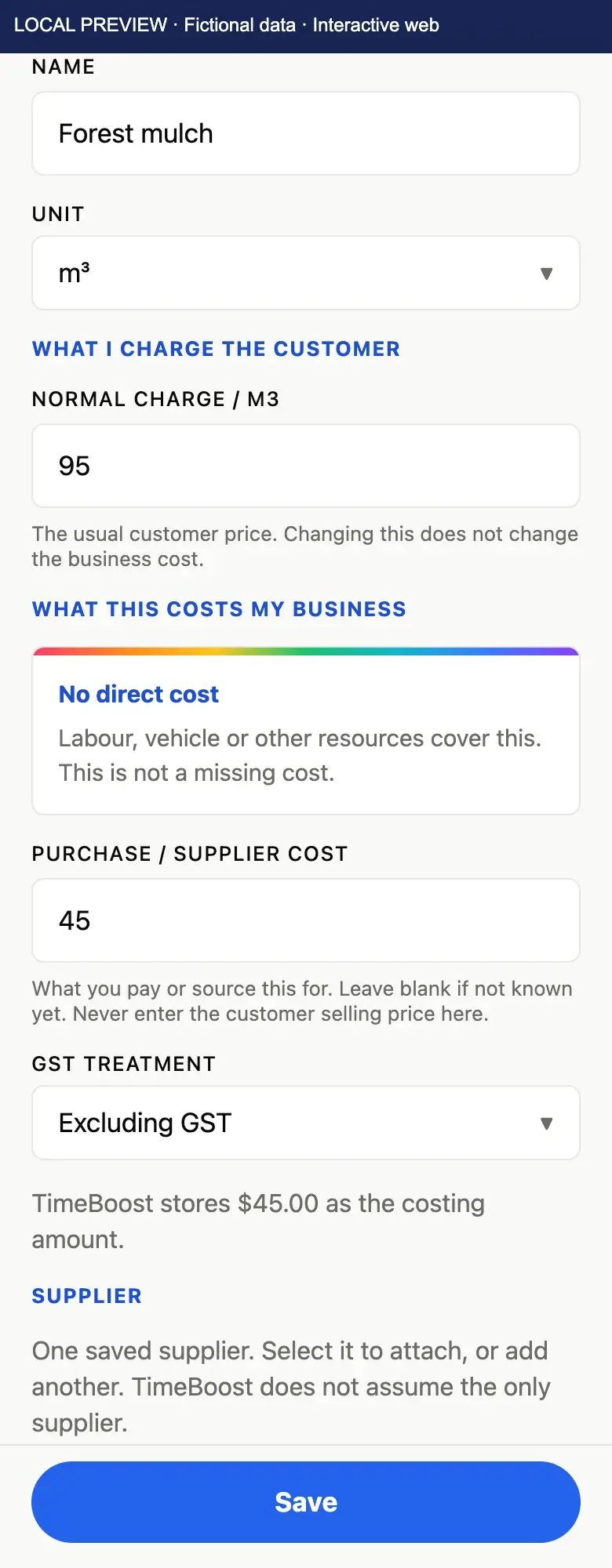
  5. Review your products and materials. For each item, enter what you normally charge the customer and what it costs your business.
A carpenter marks out timber at his workbench, with TimeBoost Home open on his phone beside him showing reminders needing attention, jobs scheduled today, his next job and money owed.
TimeBoost Home on the bench. The screen shows fictional data.
  • TimeBoost Add business details screen: import from a document or image, or enter your name, ABN, phone, email, base address and logo manually. Local preview with fictional data.Your business details
  • TimeBoost What type of business do you run? screen with Trades selected. Local preview with fictional data.Your type of business
  • TimeBoost What trade? screen listing plumbing, electrical, building and carpentry, concreting, fencing and other trades. Local preview with fictional data.Your trade
  • TimeBoost Here’s a suggested starting setup screen: trade job cards for labour, travel, consumables and equipment or machinery, each set up by tapping to edit. Local preview with fictional data.A suggested starting setup
  • TimeBoost Margin & tax settings: GST registered at 10%, a 25% minimum and 40% ideal gross margin, and quote rounding options. Local preview with fictional data.Margin & tax
  • TimeBoost product screen for Forest mulch: unit m³, normal charge to the customer $95, purchase cost $45 excluding GST, ready to save. Local preview with fictional data.Review and update your prices

Chapter 2

Your first job

From an accepted quote to a recorded payment.

  1. Create a quote. TimeBoost prices it from the costs and margin you set up.
  2. When the customer accepts, open the quote and tap Mark Accepted.
  3. Schedule the job. Choose who’s doing the work and book a time.
  4. On the day, tap Start Job.
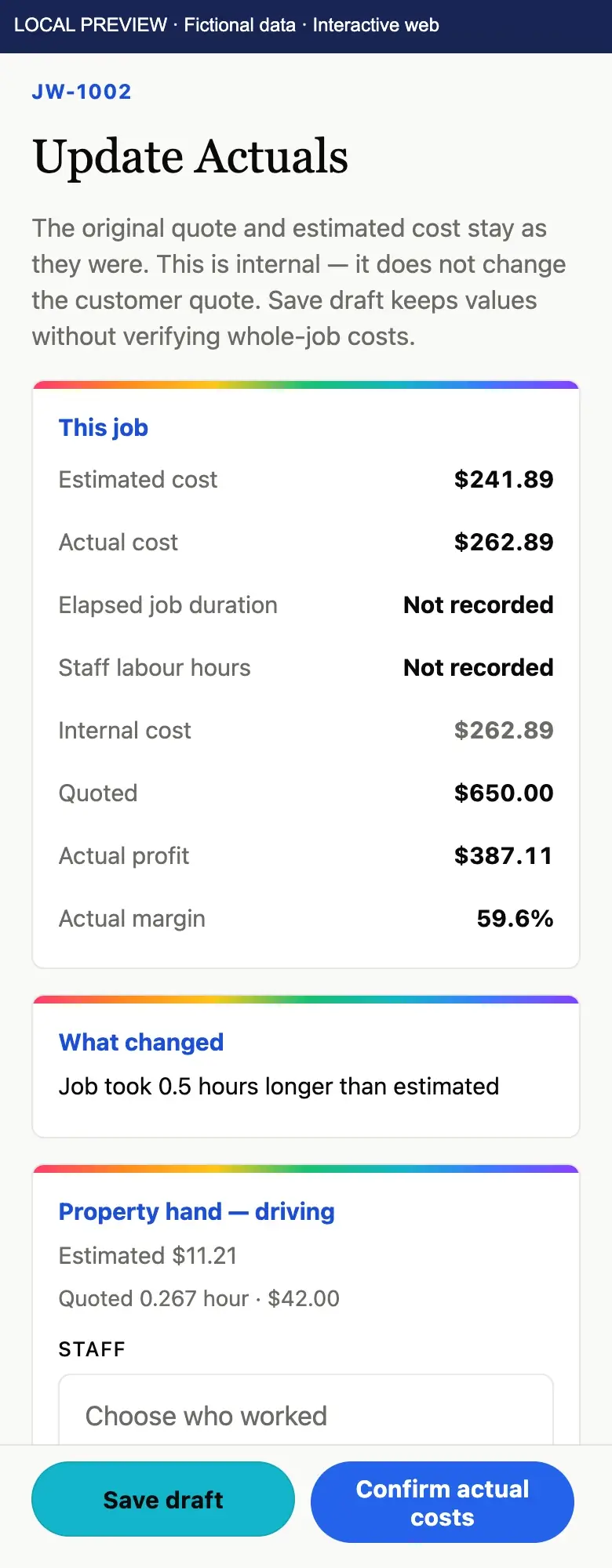
  5. After the work, open Update Actuals, enter what the job really took (for example, extra labour hours) and tap Confirm actual costs. TimeBoost shows your actual profit and margin. Watch the lesson
  6. Create the invoice from the job. When you’re paid, record it with Save payment. This records a payment you’ve received; it doesn’t process the payment.
An operator in hi-vis checks TimeBoost Home on a phone mounted in his machine’s cab on an earthworks site, tapping View quote on a quote that changed after acceptance.
Checking the next step from the cab. The screen shows fictional data.
  • TimeBoost quote ready to share: recommended price $440.00, your quote $440.00, customer total $484.00 inc GST, and the owner-only estimated profit $261.53 and margin 59.4%, with Share quote, View quote and Edit quote.Your quote, ready to share
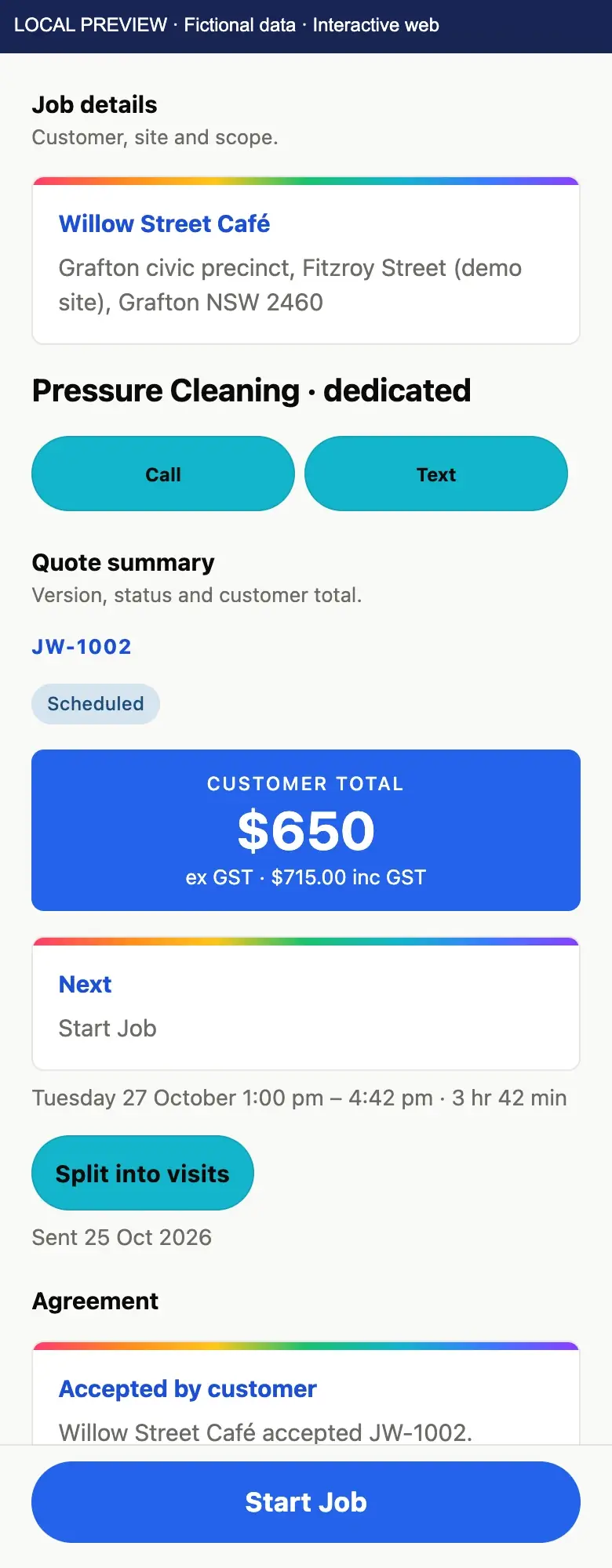
  • TimeBoost quote JW-1002 for Willow Street Café, marked Scheduled: customer total $650 ex GST, $715 inc GST, next step Start Job, booked for Tuesday 27 October from 1:00 pm to 4:42 pm, with the customer’s acceptance recorded by the owner. Local preview with fictional data.Accepted, then scheduled
  • TimeBoost Update Actuals for job JW-1002: estimated cost $241.89, actual cost $262.89, quoted $650.00, actual profit $387.11 and actual margin 59.6%. The job took 0.5 hours longer than estimated. Local preview with fictional data.Estimated against actual costs
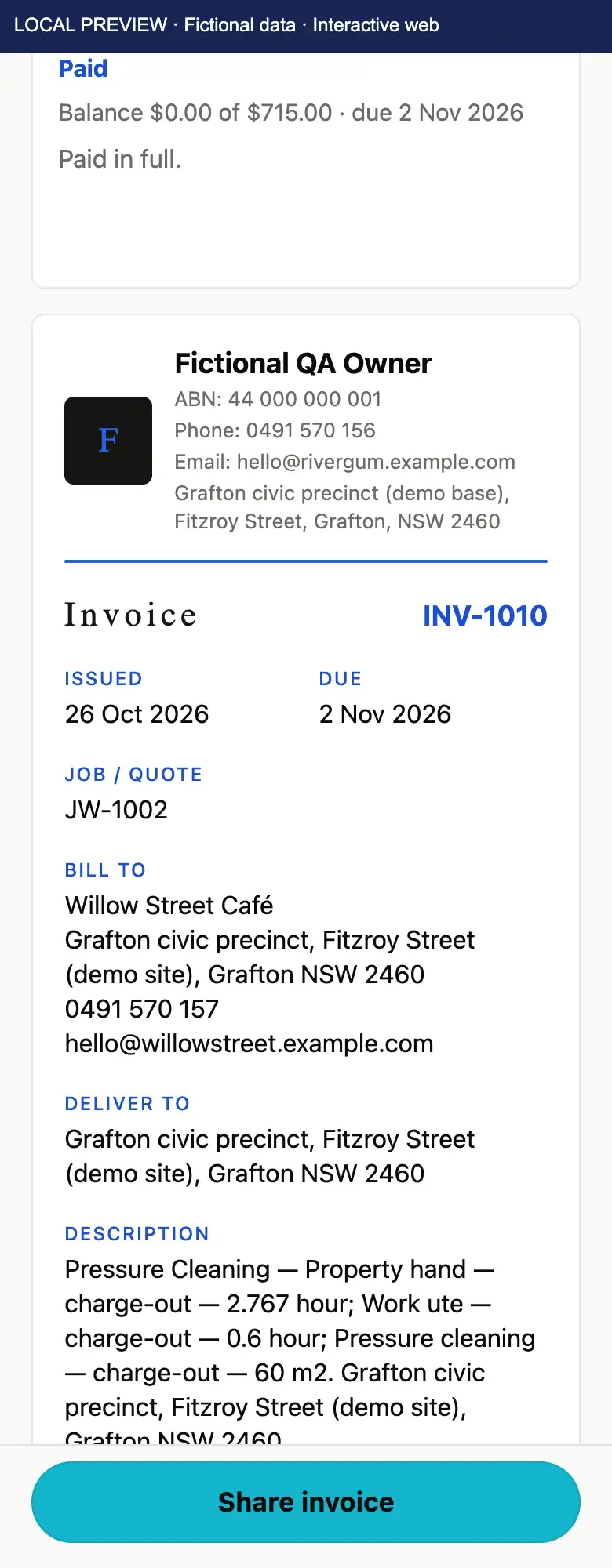
  • TimeBoost invoice INV-1010 for job JW-1002, Willow Street Café, marked Paid: balance $0.00 of $715.00, issued 26 October 2026, due 2 November 2026. The payment was recorded manually. Local preview with fictional data.Payment recorded, balance cleared

Still stuck? We’re here to support you.

Contact us →